



Effective and safe information sharing is essential in today’s hectic academic and professional settings. We frequently have to distribute, submit, or archive a number of PowerPoint files. Converting them one at a time is a laborious and time-consuming operation. Furthermore, there are legitimate privacy and data security concerns when confidential documents are entrusted to internet platforms.
This is where a dedicated, reliable solution becomes crucial. The need is clear: a method to transform presentations into the universal, fixed-layout PDF format that is flexible, inherently secure, and beautifully simple to use. This guide will introduce you to the AiPPT PPT to PDF converter, a tool designed from the ground up to meet these exact demands. By focusing on core strengths, such as output flexibility, robust security, and streamlined operation, AiPPT turns a potentially cumbersome task into a smooth and efficient workflow.
Why AiPPT is the Ideal Choice for Your PPT to PDF Conversion
When evaluating a tool for converting PPT to PDF, especially for multiple files, three attributes stand out: flexible output options, uncompromising security, and intuitive simplicity. AiPPT’s converter is engineered to excel precisely in these areas.
1. Flexible Output Options: Control How You Receive Your PDFs
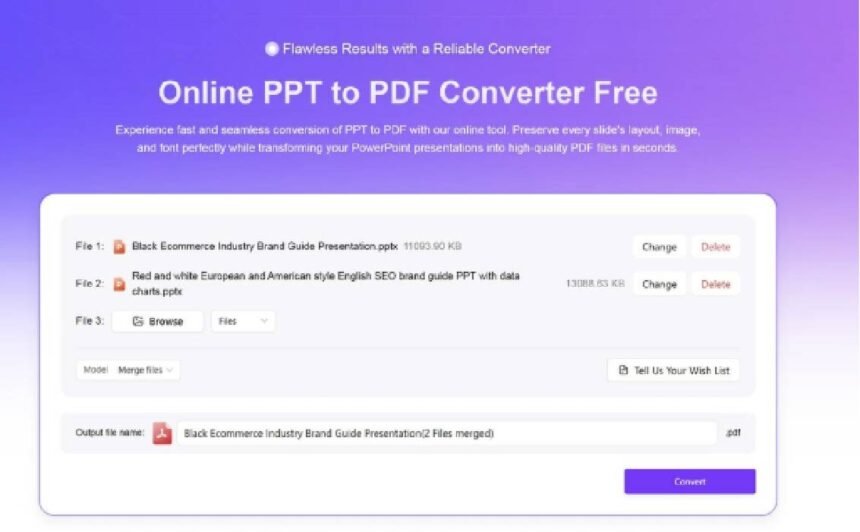
A key feature that sets AiPPT apart is the choice it provides before conversion. After uploading your files, you are presented with a simple but powerful option that caters to different needs:
- Merge into a Single PDF: Ideal for creating a unified document, such as a complete project report, a consolidated portfolio, or sequential chapters of a training manual. This option seamlessly combines all selected PPTs into one flowing PDF file, perfect for formal submission or streamlined reading.
- Convert to Separate PDFs: Best for maintaining individual file integrity, such as keeping weekly reports distinct or preserving standalone presentations. The tool will convert each PPT file into its own corresponding PDF. For your convenience, all separate PDFs can then be downloaded at once in a neatly organized ZIP package.
This pre-conversion choice empowers you to tailor the PPT to PDF process to your specific workflow, whether you need consolidation or organization.
2. A Foundation Built on Security and Trust
In an era of increasing digital caution, security is not an added feature but a fundamental requirement. AiPPT’s design philosophy places user privacy and data protection at its core.
- Protected Transfers: Your data is safeguarded during the upload and download process.
- Automatic Data Hygiene: The most critical aspect of AiPPT’s commitment is its automatic file deletion policy. Files uploaded for the PPT to PDF conversion are processed in a secure environment and are permanently erased from the servers after a very short period. This ensures your original presentations and converted PDFs are not retained, giving you complete peace of mind regarding the confidentiality of your documents.
3. The Power of Simplicity in User Experience
AiPPT proves that powerful functionality does not require a complex interface. The tool’s design is intentionally minimal and focused.
- Clear-Cut Workflow: The path from your original PPT files to converted PDFs is remarkably straightforward. The process distills into clear steps: upload, choose your output format, convert, and download. This clarity allows users of any technical level to achieve their goal—reliable PPT to PDF conversion—without confusion or unnecessary steps.
- Focused Functionality: By concentrating on doing a few things exceptionally well, the tool avoids clutter. This purpose-driven design translates into a faster, more predictable, and more satisfying user experience every time you need to convert PPT to PDF.
The Detailed Guide: Complete Control Over Your PPT to PDF Output
Following this simple, proven process will allow you to leverage the full potential of AiPPT’s converter for all your PPT to PDF needs.
Step 1: Access and Preparation
Begin by navigating directly to the dedicated tool page on the AiPPT website. A simple online search for “AiPPT PPT to PDF” or directly entering the address will lead you there.
While the tool itself is effortless to use, a small amount of preparation ensures the smoothest experience:
- Gather Your Files: Locate all the PPT presentations you wish to convert. It’s helpful to have them in one easily accessible folder on your computer.
- Quick Check: Briefly ensure your files (.pptx or .ppt formats are commonly supported) open correctly in your local software.
- Plan Your Output: Decide in advance if your project requires one merged PDF or several individual files. This forethought makes the next step even quicker.
Step 2: Upload and Choose Your Output Format
This is where you take control of your final document structure.
- Upload Your Files: Use the intuitive drag-and-drop area or the file browser to select and upload all the PPT files you wish to convert in this session.
- Make the Key Decision: Once uploaded, you will see a clear prompt asking how you would like to proceed with your PPT to PDF conversion:
- Select “Merge into one PDF” if you want a single, combined document. The files will be joined in the order they were uploaded.
- Select “Convert to separate PDFs” if you wish to keep each presentation as an independent file.
This simple choice is the heart of the tool’s flexibility, allowing you to customize the PPT to PDF process for the task at hand.
Step 3: Convert and Download
With your format selected, initiating the conversion is a single action.
- Initiate Conversion: Click the conversion button. AiPPT’s systems will process your request efficiently, applying your chosen output preference.
- Retrieve Your PDFs:
- If you choose merging, you will receive a single, downloadable PDF file containing all your content.
- If you chose separate files, you will be offered a convenient “Download All” button. This package combines all the individually converted PDFs into one ZIP archive for easy saving and organization.
Best Practices and Practical Applications
To consistently achieve the best results with the AiPPT PPT to PDF converter, consider these practical tips:
- Order Matters for Merging: When creating a single PDF, the presentations will be combined in the sequence they are uploaded. To control the final page order, upload your files one by one in the desired sequence, or ensure they are alphabetically/numerically ordered in your selection.
- Consistent Naming: For separate PDFs, clear filenames on your original PPT files will make the output in the ZIP folder instantly recognizable.
- Stable Connection: A reliable internet connection ensures the upload and processing proceed smoothly, especially for larger files or batches.
The AiPPT PPT to PDF tool, with its output choice, is exceptionally useful in numerous real-world scenarios:
- For Report Consolidation: A team can upload individual chapter PPTs and select “Merge into one PDF” to produce a seamless final report for leadership.
- For Academic Portfolios: A student can upload separate project presentations and choose “Convert to separate PDFs” to create a neat digital folder of their work for university applications.
- For Meeting Archives: An assistant can convert a series of weekly meeting decks into separate PDFs for clear, searchable filing, or merge a quarter’s summaries into one review document.
Frequently Asked Questions (Based on Actual Features)
Q: Can I choose between getting one PDF or multiple PDFs? A: Yes, absolutely. This is a defining feature of the AiPPT PPT to PDF converter. After uploading, you will be prompted to choose between merging all files into a single PDF or converting them into separate, individual PDF files.
Q: What is the quality of the output PDF? A: The conversion engine is designed to maintain the visual fidelity of your original presentation. Text remains sharp, and image quality is preserved effectively, making the output perfectly suitable for on-screen viewing, digital sharing, and standard printing.
Q: Is my data safe? Do you store my files? A: Security is a cornerstone of our service. We employ robust measures to protect your data during transfer. Crucially, in alignment with our strict privacy policy, all files uploaded for the PPT to PDF conversion are automatically and permanently deleted from our servers shortly after the process is complete. We do not retain your presentations or the generated PDFs.
Q: What happens to special fonts in my PPT? A: To guarantee consistent viewing for all recipients, the conversion process may utilize standard system fonts for substitution if a unique font from your original PPT is not universally embedded. For maximum font fidelity, you may consider embedding fonts when saving your original PPT file, if your presentation software allows it.
Q: What else can I do with AiPPT? A: AiPPT is a platform dedicated to enhancing productivity around presentations. Beyond the reliable and flexible PPT to PDF converter, you can explore the main website to discover tools powered by AI that can assist in generating and designing slide content, offering support through the entire lifecycle of a presentation.
Conclusion: Embracing Flexible and Secure Productivity
In conclusion, the AiPPT PPT to PDF converter provides a targeted and user-focused solution for typical digital work. Its value proposition is straightforward: it offers a variety of output options to suit your specific requirements, runs on a foundation of reliable security to safeguard your data, and offers an easy-to-use interface that streamlines your workflow.
The ability to decide between a merged document or separate files after uploading gives you remarkable control over the final product of your PPT to PDF conversion. We invite you to experience this streamlined efficiency and flexibility firsthand. Visit AiPPT today and discover how easily you can transform your presentations into perfectly formatted PDFs, tailored precisely to how you need to use them.