



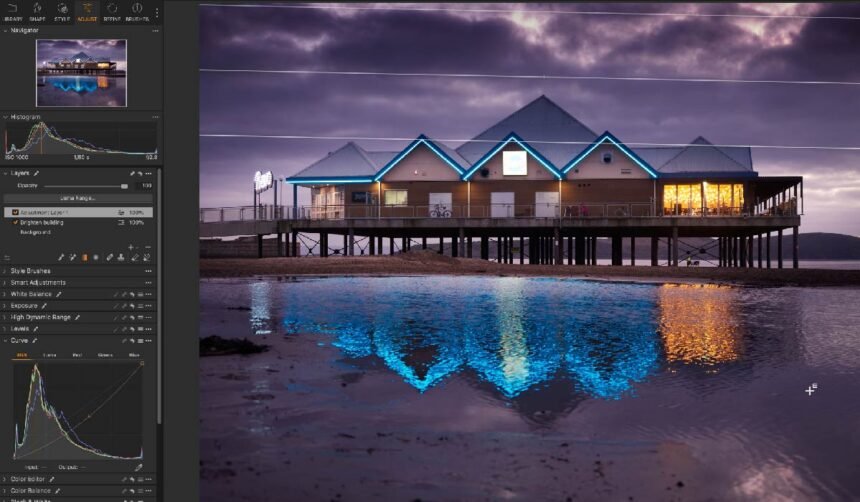
Lightroom has defined the way photographers work for over a decade. It’s a familiar part of the process for many creative individuals. Its blend of organization and editing tools is perfect for both beginners and professionals. Photography in 2026, however, holds technologies, pricing models, and creative expectations that can shift. You will want to update your post-processing tooling accordingly.
In this article, we take a closer look at the most relevant programs like Lightroom. Each option is reviewed with real-world use in mind. The goal is to help you understand which tools align best with your experience level, creative goals, and daily workflow.
-
Luminar Neo
Luminar Neo for photographers who are looking for powerful AI tools without being bogged down in technical menus. It runs on Windows and macOS as a standalone editor. Access to Luminar Mobile on iOS, Android, and ChromeOS is available on higher-tier plans. When people compare Luminar Neo vs Lightroom, pricing is an important factor. Luminar is much more budget-friendly. The pricing options start with a Perpetual Desktop license at around $119 USD. Cross-Device and Max licenses are more expensive, but they include additional benefits.
| Pros | Cons |
| AI-powered tools can handle tasks like sky replacement, portrait enhancement, and object removal in a few guided steps, which speeds up everyday edits. | Running several AI tools on large RAW files can be demanding on older hardware, so a reasonably modern computer is recommended. |
| You don’t have to sacrifice the convenience of Adobe Lightroom’s workflow to experiment with Luminar Neo’s capabilities, as this software can be used as a plugin for Lightroom. | Multiple license types and bundles can feel confusing at first; you need a moment to compare what each plan actually includes. |
| Built-in presets and looks help you find a visual style quickly and apply it consistently across an entire shoot. |
-
Zoner Studio
Zoner Studio (formerly Zoner Photo Studio X) is among the do-it-all Adobe Lightroom alternatives. It combines RAW development, layered editing, and printing tools in one interface. There are pricing options for various needs. The Individual plan is listed at $59/year, while the Family plan is $98/year, both including updates and 20 GB of cloud storage.
| Pros | Cons |
| One program covers the full workflow, from importing and developing RAW files to local adjustments, retouching, and final layout for print or export. | Runs only on modern Windows. If you use macOS or another platform, this option is not for you. |
| Subscription includes regular feature updates, so new tools arrive without extra upgrade fees. | The multi-module layout can feel overwhelming at first, especially if you are accustomed to simpler, single-screen apps. |
| Annual price undercuts many big-name suites. It is great for users who want something more powerful than basic free tools without Adobe-level costs. | The community and preset ecosystem are smaller than those in Lightroom. You will find fewer third-party looks, plugins, and niche tutorials. |
-
CyberLink PhotoDirector 365
CyberLink PhotoDirector 365 is a subscription-based editor for macOS and Windows. It is perfect for users seeking Lightroom alternatives with advanced AI features for portraits, products, or social media posts. It offers both a subscription ( 39.99 €/year (≈$43)) and a perpetual version (99.99 € (≈$108)).
| Pros | Cons |
| A rich set of generative AI tools makes complex edits like outfit swaps or background rebuilds feel approachable. | The interface is split into several modes with many controls, which can feel overwhelming if you only need simple tweaks. |
| The Quick Actions panel suggests AI-powered enhancements and one-click fixes, speeding up work on large batches of portraits or social content. | The Essentials (free) edition is feature-limited; advanced options and content packs are reserved for paying subscribers. |
| Full RAW workflows and multilayer editing allow you to grow from simple adjustments into complex compositing without switching apps. |
-
Pixelmator Pro
What is the best photo editing software specifically for Mac users who prioritize speed and simplicity? Pixelmator Pro positions itself as a strong competitor in this niche. This editor is available as a one-time purchase for $49.99. It is a great option for users who don’t want to overload themselves with subscriptions.
| Pros | Cons |
| The software is optimized for macOS, delivering fast performance even on large files. | The program is not available for Windows or mobile platforms. |
| A clean, modern interface feels intuitive for users at all skill levels. | The software lacks built-in photo cataloging for large libraries. |
| One-time purchase keeps long-term costs predictable. | Limited workflow options may be daunting for high-volume professional studios. |
Conclusion
Exploring alternatives to Lightroom reveals options tailored to diverse needs and budgets, from AI-driven tools to comprehensive solutions. Individual workflows and creative aspirations define the best choice. The recommendations from this guide will help every photographer find the right fit to enhance their editing experience.