



![How to Recover Bookmarks in Chrome Easily [Windows & Mac]](https://fourmagazine.co.uk/wp-content/uploads/2025/12/Screenshot-2025-12-25-at-8.16.16-AM-860x511.png)
7 Top Ways to Recover Deleted Bookmarks in Chrome
One of the most useful features of Chrome is the bookmarking function, which allows users to save and organize their favorite websites for easy access. However, Have you ever accidentally deleted Chrome bookmarks before? Do you know how to recover bookmarks in Chrome with ease?
Losing important bookmarks can mean hours of lost productivity, as well as a significant loss of time and effort. It can be a nightmare causing chaos and confusion in both personal and professional life. Thankfully, there are some effective ways to recover Chrome bookmarks, whether you are a Mac or Windows user.
In this post, we will show you step-by-step how to recover Chrome bookmarks, so you can avoid the negative impact of losing your important data. Let’s get started!
Part 1: Can You Recover Chrome Bookmarks?
No worries! It is usually possible to recover deleted bookmarks in Chrome.
That’s why we are here and we will provide different methods to you to recover Chrome bookmarks. However, these methods may not always work, especially if the bookmarks were deleted a long time ago or if they were overwritten by new bookmarks. If you want to recover Chrome Bookmarks, you’d better take action as soon as possible. Additionally, it’s always a good idea to regularly back up your bookmarks to prevent data loss.
Part 2: How to Recover Bookmarks in Chrome in Windows 10/11?
Fix 1: Recover Chrome Bookmarks from Backup
If you want to use this way recover deleted bookmarks in Chrome, just follow these simple steps:
Step 1: Firstly, open the file explorer and locate the backup file that contains the bookmarks you want to restore. If you don’t know where Chrome bookmarks saved, just type command below
into the search bar.
Windows: C:\Users\USERNAME\AppData\Local\Google\Chrome\User Data\Default
Step 2: Enter “Bookmarks” into the search bar. It will show you those files named “Bookmarks” and “Bookmarks.bak”.
Step 3: Copy bookmarks to a new partition and Rename the Bookmarks.bak file to Bookmarks.
Step 4: Re-open Chrome and All deleted bookmarks should now be available.
Fix 2: Use a Chrome Bookmarks Recovery Tool
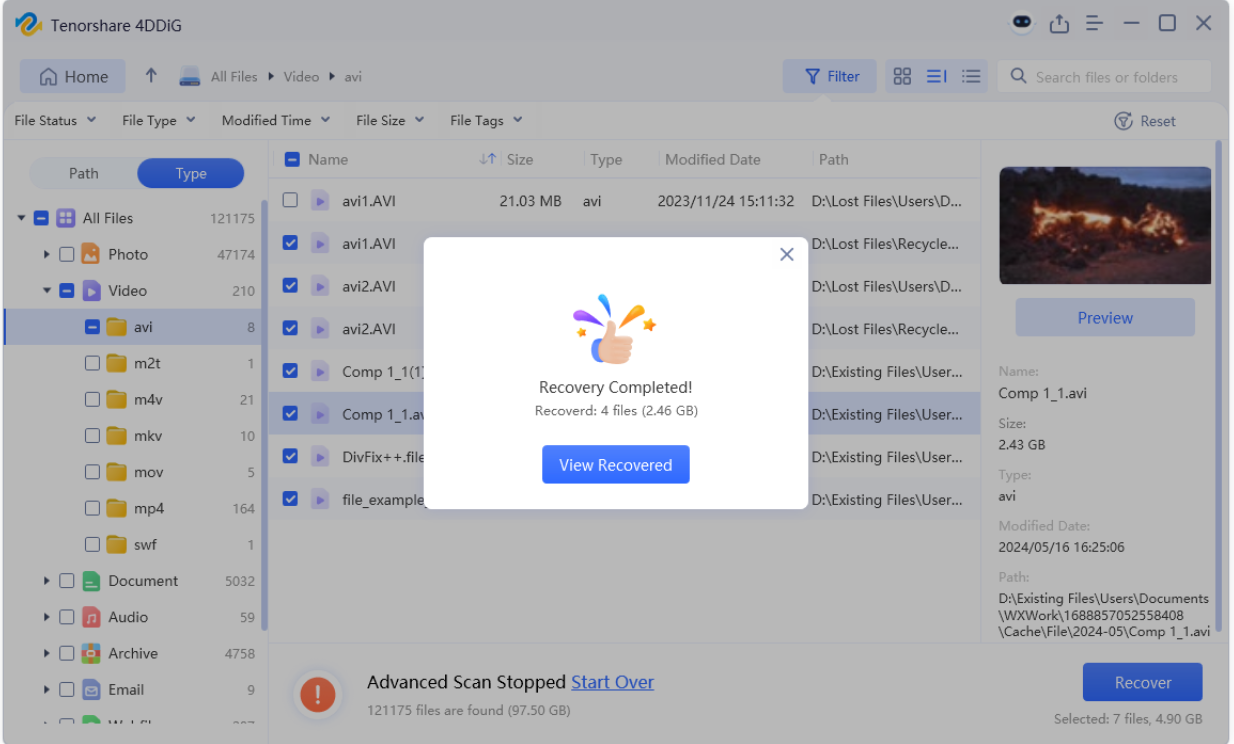
If you delete local bookmark.bak files,or you don’t have backup files, it’s difficult to recover deleted bookmarks in Chrome. However, you don’t need to worry because you can use free data recovery software to retrieve the last backup files. Tenorshare 4DDiG, a reliable file recovery tool, can help you recover Chrome bookmarks with a higher success rate.
- Supports more than 2000 types of data.
- Retrieves deleted, formatted, corrupted or missing files.
- A free version is available.
- No technical background required.
- Compatible with Windows and Mac systems.
Just follow these steps to recover Chrome bookmarks effortlessly:
Step 1: Download, install and launch the 4DDiG Data Recovery tool. After that, choose the drive where you last saved your backup files. Click “Scan” to proceed.
Step 2: It won’t take you a long time to scan the drive. Generally, the scan can be completed in a few minutes. During this time, you can preview the scanned files.
Step 3: Choose your last backup files and Click on the “Recover” button. Keep in mind that save your files at a new partition instead of the drive where the data was previously lost.
Fix 3: Recover Chrome Bookmarks with Bookmark Manager
To recover deleted Chrome bookmarks using the Bookmark Manager, please follow these steps:
Step 1: Open Google Chrome and click on the three-dot menu icon at the top right corner of the window. Select Bookmarks > Bookmark manager > Import bookmarks and settings.
Step 2: If you have export your bookmarks in HTML file to your PC, choose bookmark html file for next step.
Step 3: Click on Done. Now you find and recover Chrome bookmarks in the imported folder.
Fix 4: Recover Chrome Bookmarks Using Google History
If you want to use google history to recover deleted bookmarks in Chrome, please follow these steps:
Step 1: Click on the three-dot menu icon at the top right corner of Chrome window. Then, Click on the”History” from the menu.
Step 2: In the History tab, click on “History” again.You can browse your recent history here. Or you can type “chrome://history/” into the search bar.
Step 3: If you find the history page of the websites you want to restore, just save them.
Fix 5: Recover Deleted Bookmarks in Chrome via DNS
If you have updated your Google Chrome browser recently, you may be able to restore them using the DNS cache, although this solution is quite technical. Here are the steps to recover Chrome bookmarks with DNS cache:
Step 1: Use the hotkey “Windows + Q” and then, enter “cmd”(Command Prompt) into the search bar.
Step 2: Once the command prompt opens, type “ipconfig /displaydns” and press “Enter”. This will display a list of the websites you have visited in the past.
Step 3: it will show you the list of websites and you can bookmark your favorite one now. Chrome will store the sites under bookmarks again.
Part 3: How to Recover Bookmarks in Chrome on Mac?
Fix 6: Recover Deleted Bookmarks in Chrome by Backup Files
If you are a macOS user and have previously set up Time Machine to automatically back up your data, you can use it to recover deleted bookmarks in Chrome. Here are the steps to follow:
Step 1: Go to where your Chrome bookmark is saved on Mac.
macOS: /Users/USERNAME/Library/Application Support/Google/Chrome/Default
Step 2: Select Default and find bookmarks(bookmarks.bak) files.
Step 3: To utilize the Bookmarks.bak file as the new bookmark file, relocate the Bookmarks to a different location.
Step 4: Change the name of Bookmarks.bak to Bookmarks, subsequently exit Finder and reopen Google Chrome.
Fix 7: Recover Deleted Bookmarks in Chrome by Time Machine
If you find the above method too complicated, you can try this one. Similarly, this method is also related to Time Machine. Just follow these steps:
Step 1: Open Finder and enter Time Machine. Or, you can click on the Apple icon in the upper left corner of the screen. Select “System Preferences”>”Time Machine”
Step 2:To locate a time before you deleted the Chrome bookmark file, click the arrow next to the window.
Step 3:Next, select the desired file for recovery and click on the “Restore” option.
With Time Machine, you will never ask how to recover bookmarks in Chrome on Mac again.
Never Lost Your Chrome Bookmarks Again
If possible, we don’t want to use chrome books recovery tools. So, it is crucial to take action to prevent data loss.
To prevent accidentally deleting your bookmarks in Google Chrome, here are some tips you can follow:
- Regularly backup your bookmarks: Use a backup method that works for you, such as using cloud storage or an external hard drive, to save a copy of your bookmarks. This way, if you accidentally delete them, you can easily restore them.
- Use Chrome Sync: Sign in to Chrome with your Google account and enable the Chrome Sync feature. This will automatically sync your bookmarks across all your devices, and you can restore them easily in case of accidental deletion.
- Use a separate bookmark folder: Create a separate folder for bookmarks that you don’t want to accidentally delete. This way, you can avoid deleting important bookmarks when you’re clearing out others.
- Check before deleting: Double-check that you’re not deleting any important bookmarks before clearing out your bookmarks. Take a few moments to review them and make sure you’re deleting the right ones.
Conclusion
In conclusion, with the right methods, it is possible to recover Chrome bookmarks with ease. This guide highlights seven effective methods for recovering Chrome bookmarks for both Windows and Mac users. Additionally, it also emphasizes that prevention of data loss is the best recovery method. Most importantly, With 4DDiG and backup files, you will never worry about how to recover bookmarks in Chrome.